MKhost Knowledgebase
Need help? Search or browse our large collection of articles on a variety of topics including hosting, domains, emails and more .
Change of Payer for the Invoice
Change of payer for service and of a signe invoice
Due to the frequent need for proforma invoices for services purchased through your account to be issued to different payers (legal or natural persons), we have upgraded the service that allows changing the payer of a proforma invoice.
Until now, every generated proforma invoice was issued to the default payer (the one assigned to the account), with the option to change the payerafterthe invoice had already been generated.Now we’re going a step further: not only can you change the payer on an already generated proforma invoice, but you can alsopre-assignspecific services to a designated payer, so all future proforma invoices for those services will automatically be issued to the selected payer.
Payer ManagementIn thePaymentsmenu, there's now a submenu where you can selectPayer Templates, which contains two tabs:
- Already create payer -Here, you'll see a list of the default payer (main account) and previously created sub-contacts for invoicing, either added manually or upon your request. You can create a new payer or edit specific details of an existing additional payer.
Note: Only additional payers can be edited; changes to the default/main payer must be made via My Account.
- Serviced linked with custom invoice tempaltes - Here, you can link each active service to a specific payer.After linking, all future generated proforma invoices for that service will be issued to the assigned payer — unless changed manually on the invoice or relinked to another payer.
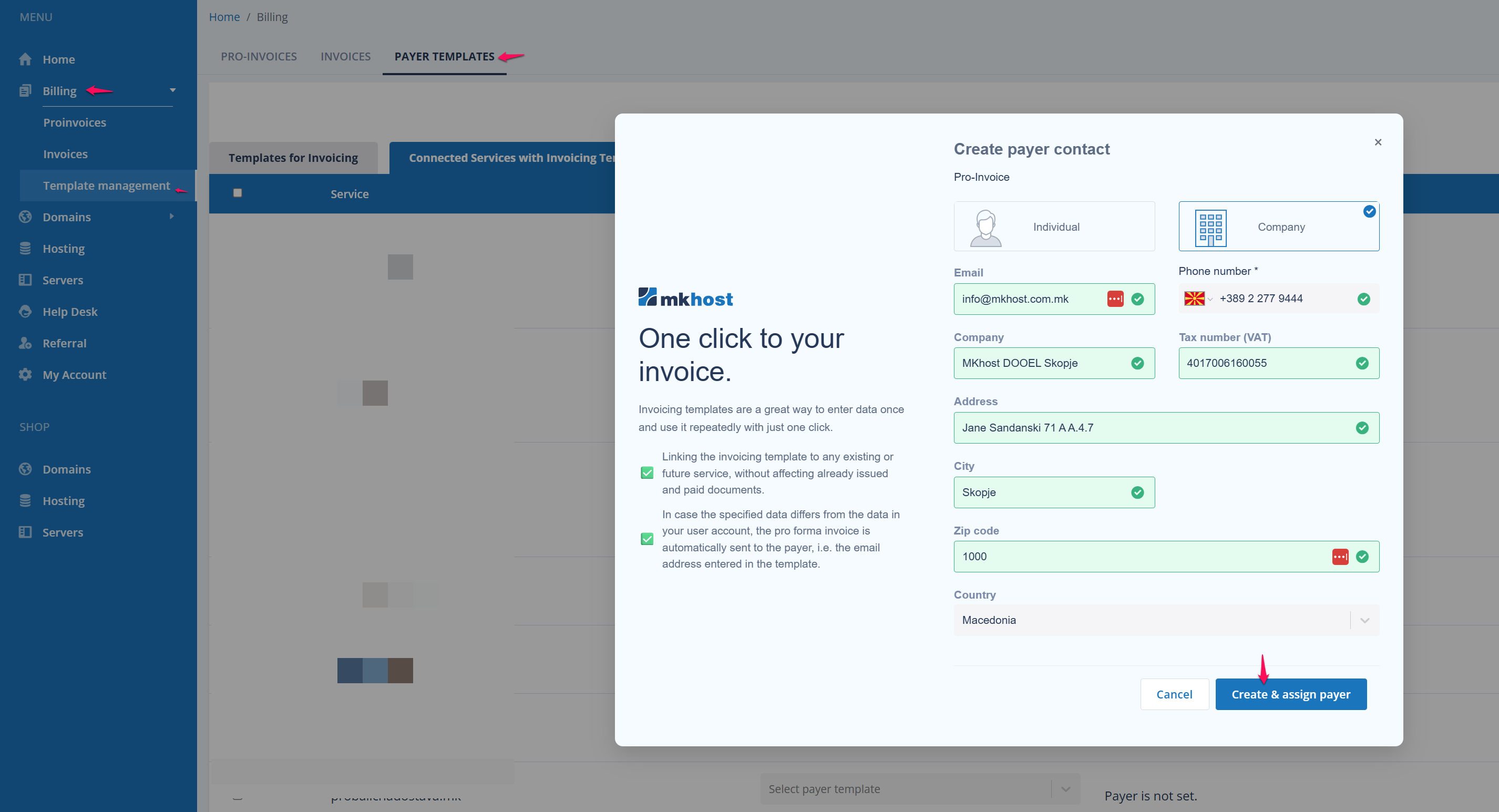
Adding a New Payer
Go to:Billing→ Template Management → Payer Template → Add New Payer →Enter the required payer information →ClickCreate New Payer.
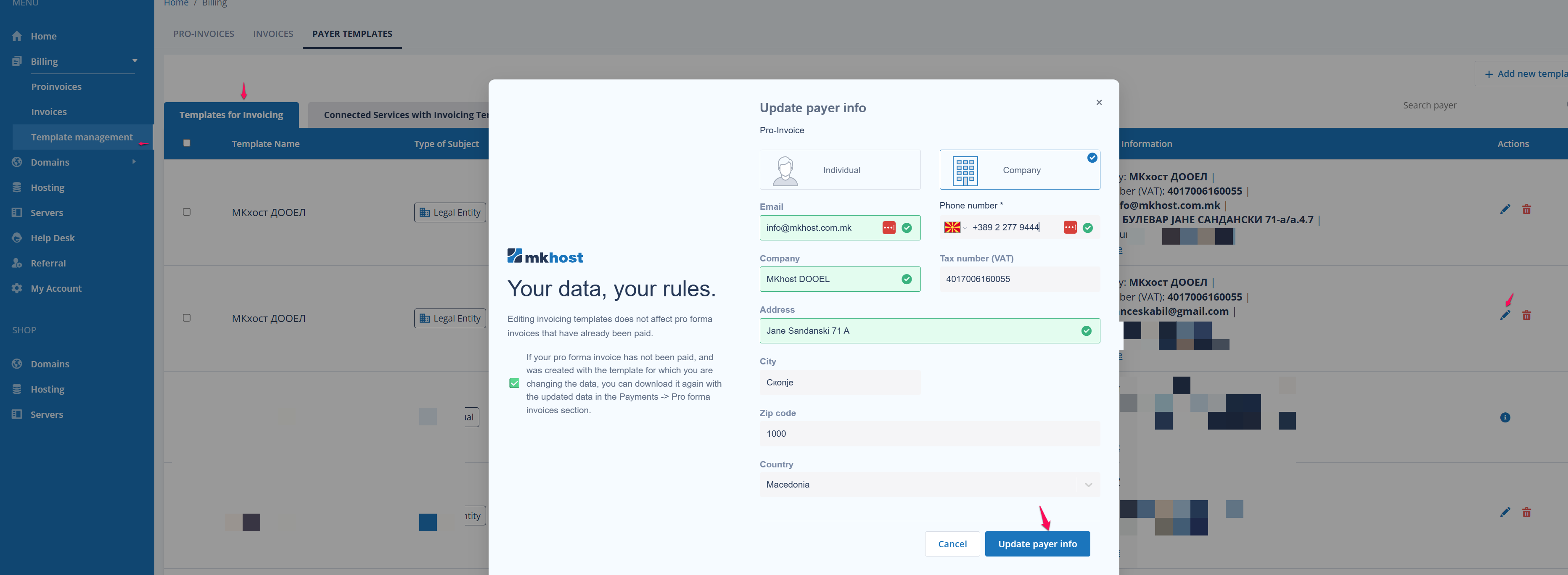
Editing Existing Payer Information
Go to:Billing→ Template Management → Payer TemplateFind the payer you wish to modify →UnderActions, clickEdit(pencil icon).
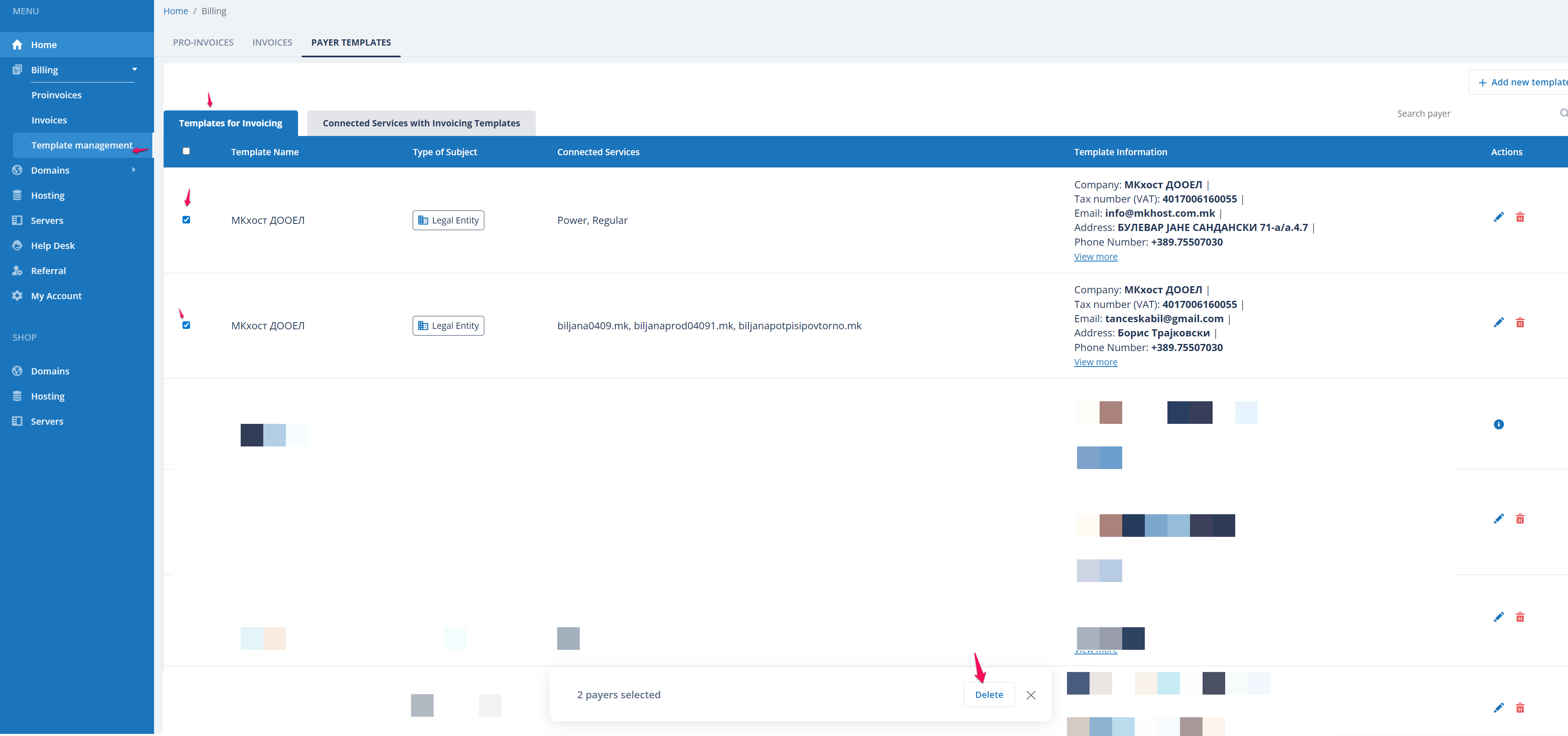
Deleting Payers
Go to:Billing→ Template Management → Payer TemplateSelect the payers you want to delete (you cannot delete the default payer) →At the bottom of the page, clickDelete.
Linking Services to a Specific Payer
Go to:Billing→ Template Management → Tab: Connected services with invoicing templatesFind and select the service you want to link →At the bottom of the page, choose the desired payer from the dropdown menu →ClickAssign Payer.
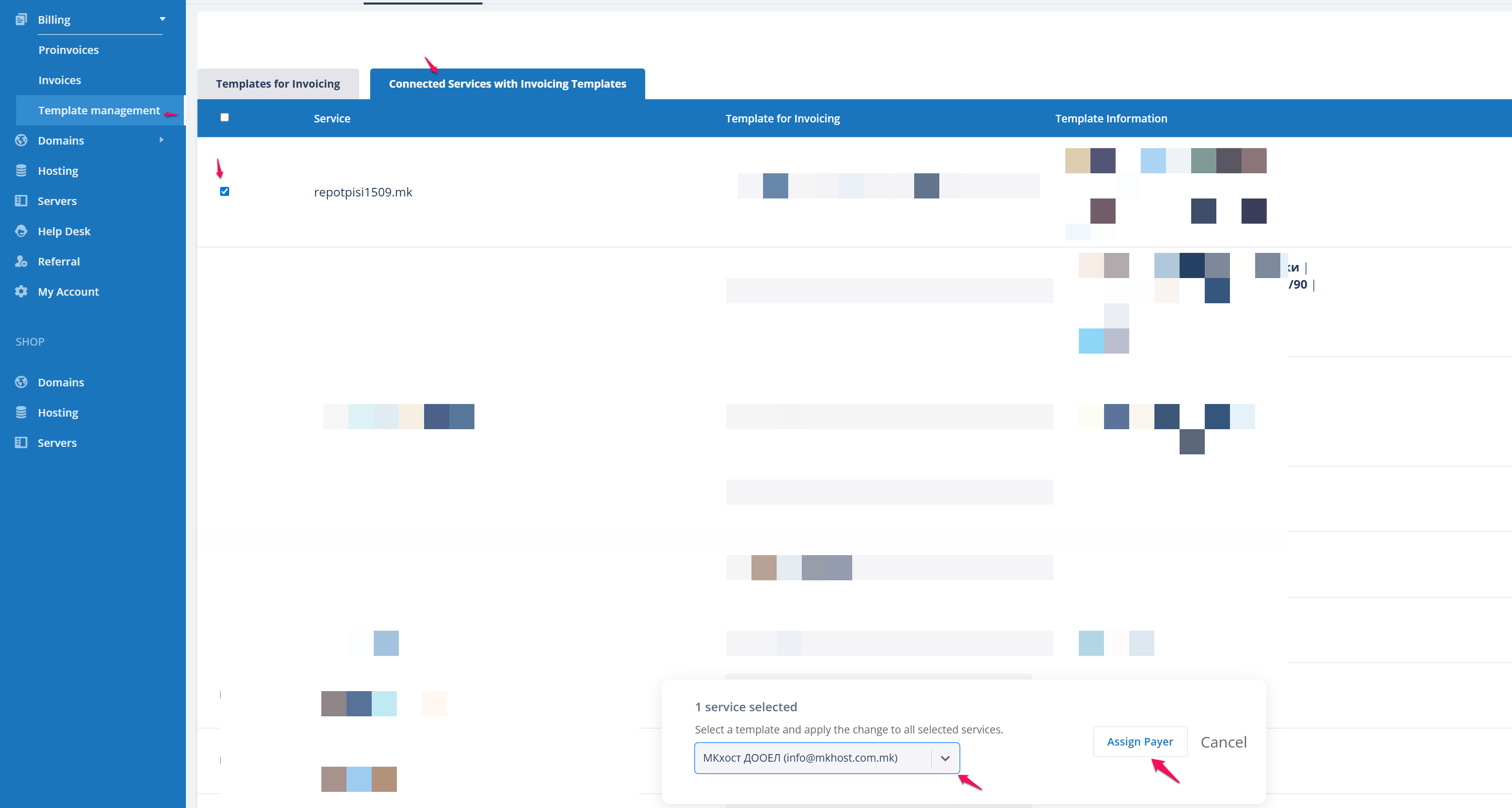
*Note: In the future, all proforma invoices generated for this service will be issued to the assigned payer.Invoices will be sent automatically to both the main account email and the email of the assigned payer.
Procedure for Changing the Payer on an Unpaid Proforma Invoice
1. Changing the Payer on a Proforma Invoice
Log in to:https://portal.mkhost.com.mk
Go to:Payments → Proforma Invoices
You will see a list of all unpaid proforma invoices.Example: “Invoice #12345 – Status: Unpaid”
Click the dropdown button to view the list of available payers.
All created payers will be listed (e.g., Company A, Company B, Private Person).
Select the appropriate payer to assign it to the invoice.
Then, chooseCredit Cardand clickPay Now.
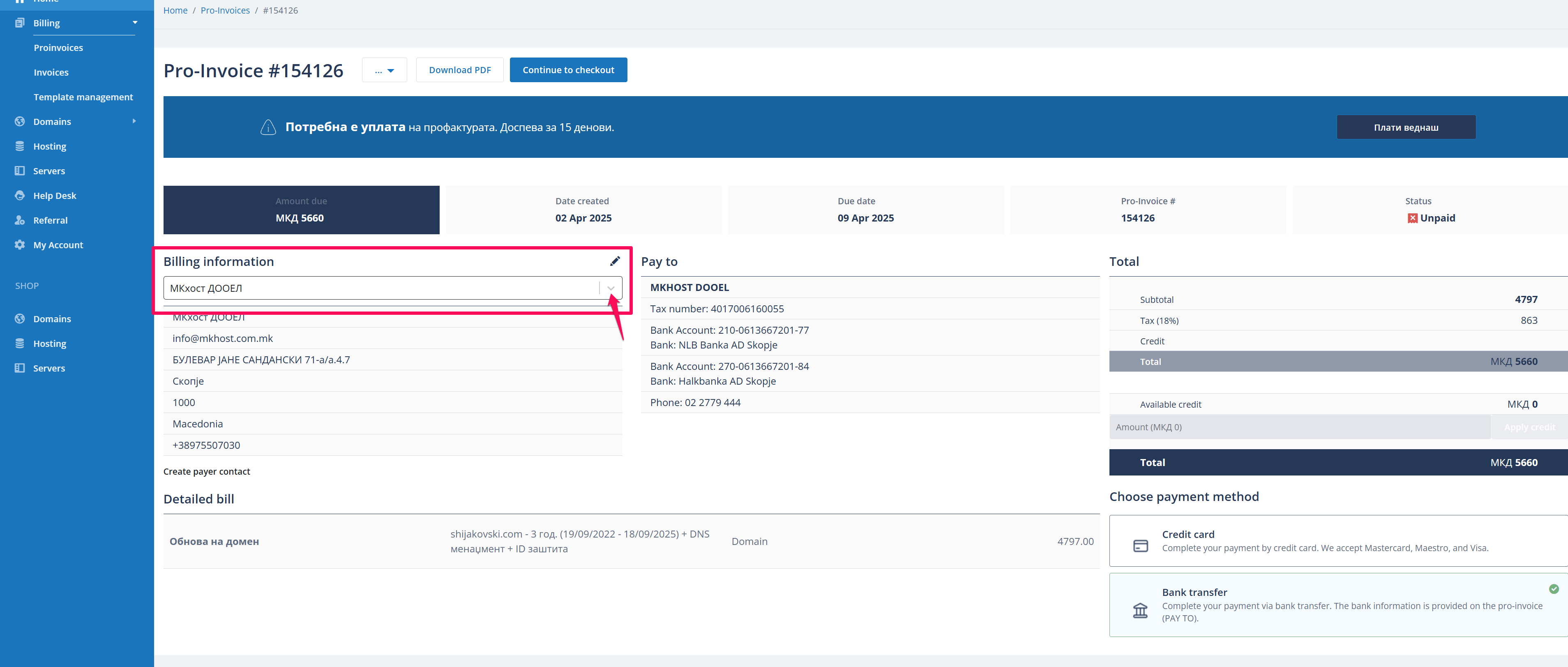
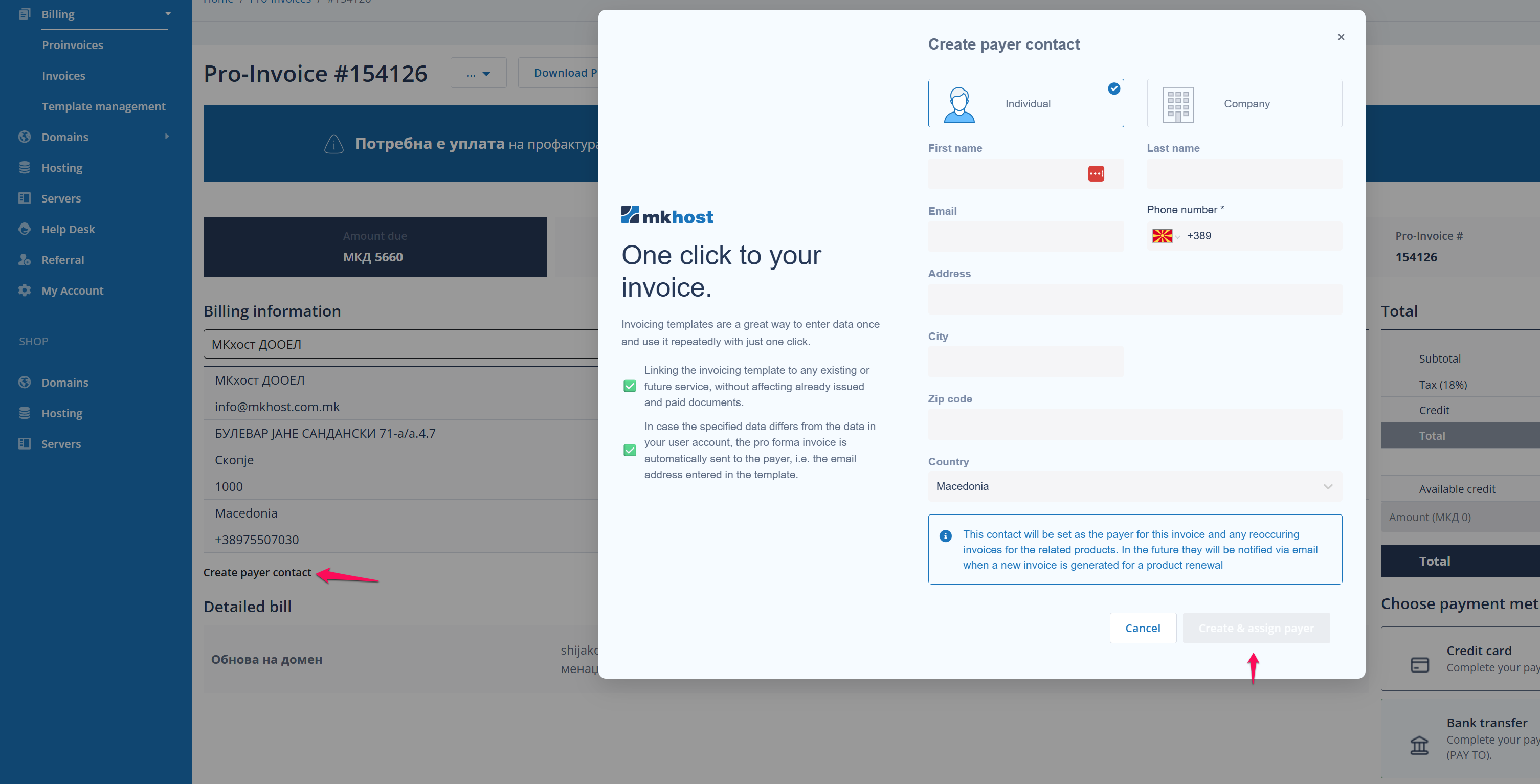
2. If You Need to Create a New Payer:
ClickCreate New Payer with Payment Details
Fill in all the necessary information (Individual or Legal Entity)
Click theCreate New Payerbutton to save.
The newly created payer will be assigned to this proforma invoice and to all future proforma invoices for services purchased through this invoice.