MKhost Knowledgebase
Need help? Search or browse our large collection of articles on a variety of topics including hosting, domains, emails and more .
 0Portal
Add additional contact on your client account
You can now add an additional contact who will be notified about invoices, alongside the payer linked to the account.
- Until now, invoices were automatically issued to the default payer, but now you can also link a specific service to a chosen payer in advance.
- All future invoices for that service will be automatically issued to the selected payer.
- The additional contact will receive notifications for invoices related to the service.
Managing Payers and Additional Contacts
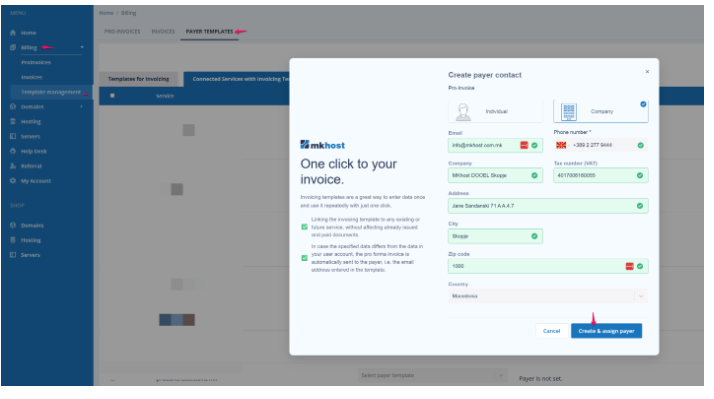
From the menu, select:Billing→ Template Management → Payer Template → Add New Payer →Enter the required payer information →ClickCreate New Payer.
Editing Existing Payer Information
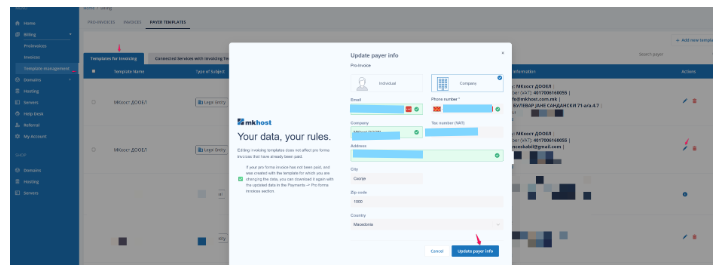
From the menu, select:Billing→ Template Management → Payer TemplateFind the payer you wish to modify →UnderActions, clickEdit(pencil icon).
Deleting Payers
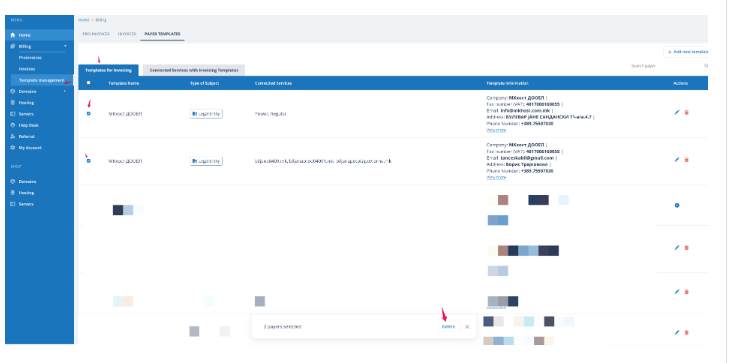
From the menu, select:Billing→ Template Management → Payer TemplateSelect the payers you want to delete (you cannot delete the default payer) →At the bottom of the page, clickDelete.
Linking Services to a Specific Payer
From the menu, select:Billing→ Template Management → Tab: Connected services with invoicing templatesFind and select the service you want to link →At the bottom of the page, choose the desired payer from the dropdown menu →ClickAssign Payer.
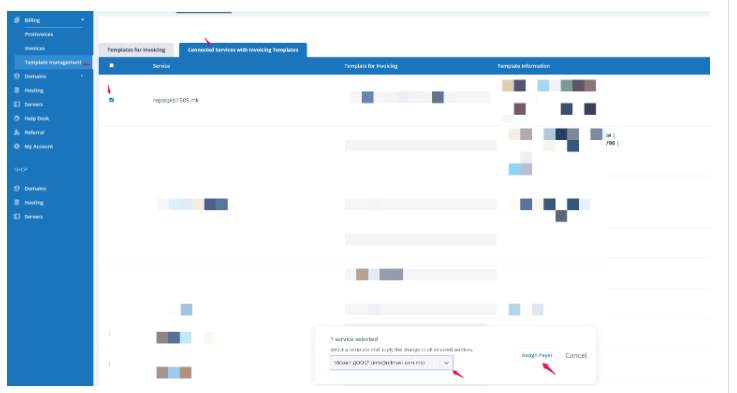
From now on, all invoices generated for this service will be issued to the assigned payer. Invoices will be automatically sent to both the main account email and the email of the respective payer.
Procedure for Changing the Payer for an Unpaid Invoice
Changing the Payer on an Invoice
Log in toportal.mkhost.com.mk.
Go toPayments → Invoices.
You will see a list of all unpaid invoices.Example:“Invoice #12345 – Status:Unpaid”
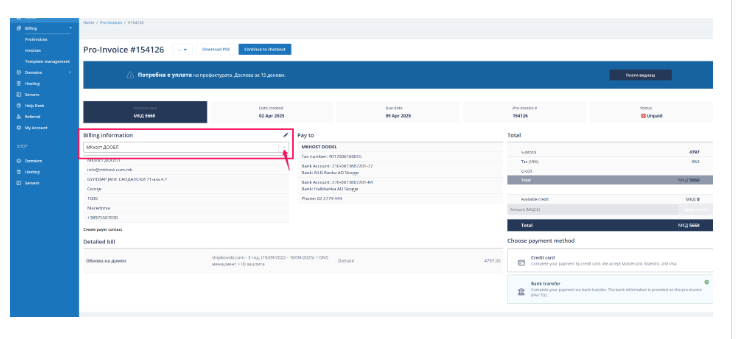
Click the drop-down button to open the list of available payers. All created payers will be displayed (e.g., Company A, Company B, Private Person).
Select the appropriate payer you want to assign to the invoice.
Then chooseCredit Cardand clickPay Now.
Creating a New Payer
ClickCreate New Payerto enter payment information.
Enter all required details for the payer (Individual or Legal Entity).
ClickCreate New Payerto save it.
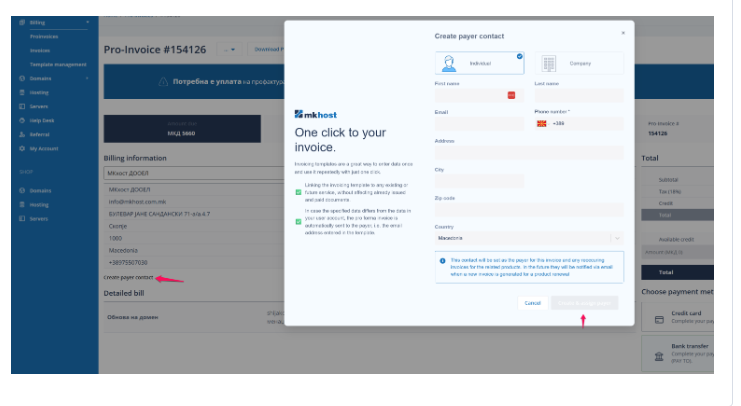
The newly created payer will be assigned to this invoice and all future invoices generated for services purchased under this invoice. From now on, they will be notified via email whenever a new invoice is issued for the renewal of services from this invoice.