MKhost Knowledgebase
Need help? Search or browse our large collection of articles on a variety of topics including hosting, domains, emails and more .
DNS Configuration for Email Hosting
Watch the video below to learn how to use and manage the e-mail hosting service:
For proper sending and receiving of email messages through MKhost Email Hosting, the domain used with the service must have the required DNS records configured correctly.
Depending on where the domain's DNS zone is managed, the required records can be configuredautomatically through the MKhost Client Portalormanually through the domain's DNS provider.
In this guide, we will explain:
- how to connect your domain to MKhost Email Hosting;
- how to automatically configure the required DNS records;
- how to manually configure the DNS records;
- how to check whether the configuration was successful;
- how long it takes for DNS changes to become active.
1. How do I connect my domain to MKhost Email Hosting?
What is required before connecting the domain?
Before you begin the DNS configuration, you need:
- an active MKhost Email Hosting service;
- an active domain that you will use for your email addresses;
- access to the domain's DNS configuration if manual configuration of the records is required.
An email address can be created before the DNS configuration is fully completed. However, for normal sending and receiving of email messages, the required DNS records for the domain must be configured correctly and successfully validated.
Domain registered with MKhost
If the domain is registered with MKhost and uses the standard MKhost nameservers:
the required DNS records for the Email Hosting service can be configured automatically through the MKhost Client Portal.
After creating the email address, the system checks the domain's current DNS configuration.
If the required records are already configured correctly, the email address will be active and no additional DNS configuration is required.
If any required records are missing, the portal will indicate that configuration is required and will provide the necessary parameters for connecting the domain to the Email Hosting service.
Important:If the domain is registered with MKhost but uses different nameservers, automatic DNS configuration is not available. In this case, the required DNS records must be configured manually in the domain's active DNS zone.
Domain registered with another provider
If the domain is registered with another provider or its DNS zone is managed outside MKhost, the required DNS records must be configured through the provider that manages the domain's DNS zone.
The MKhost portal displays the exact values that need to be entered. Log in to your DNS provider's control panel, open the section for managing DNS records, and enter the parameters displayed in the MKhost portal.
Important:The provider where the domain is registered is not necessarily the same provider that manages its DNS zone. DNS records must be changed through the provider whose nameservers are currently used by the domain.
Where can I change the DNS records?
If the domain's DNS zone is managed through MKhost, the DNS records can be viewed and edited through:
MKhost Client Portal → Domains → select the domain → Change Nameservers → DNS Zone
If the DNS zone is managed by another provider, the changes must be made through that provider's control panel, usually in a section namedDNS Management,DNS Settings,DNS Zone, or similar.
How do I connect the domain?
Depending on where the DNS zone is managed, the configuration can be performed:
- automaticallythrough the MKhost Client Portal; or
- manuallyby entering the DNS records displayed in the portal through your DNS provider.
DNS configuration only needs to be performedonce per domain. If you later create additional email addresses on the same domain, you do not need to configure the same DNS records again.
How do I check whether the domain has been successfully connected?
After the required DNS records have been configured, the MKhost portal checks the domain's configuration.
If all required records are configured correctly and successfully validated, the email address will have the status:
"Active"

This indicates that the domain has been successfully configured for use with the Email Hosting service.
If the status is"Configuration Required", check the DNS records displayed in the portal and make sure that the record type, Host/Name, and value have been entered correctly.
2. How do I automatically configure DNS records for Email Hosting?
Automatic DNS configuration is available if the domain is registered with MKhost and uses the standard MKhost nameservers:
In this case, the domain's DNS zone is managed through MKhost, and the required DNS records for the Email Hosting service can be configured automatically through the MKhost Client Portal.
This means you do not need to manually enter the required DNS records one by one in the DNS zone.
Important:If the domain is registered with MKhost but uses different nameservers, automatic DNS configuration is not available. In this case, the required DNS records must be configured manually in the domain's active DNS zone.
Where can I find the automatic DNS configuration?
After creating the email address, the system automatically checks the domain's DNS configuration.
During the check, the following status is displayed:
"Checking Configuration"
If the system determines that records required for the Email Hosting service are missing, the email address will receive the following status:
"Configuration Required"
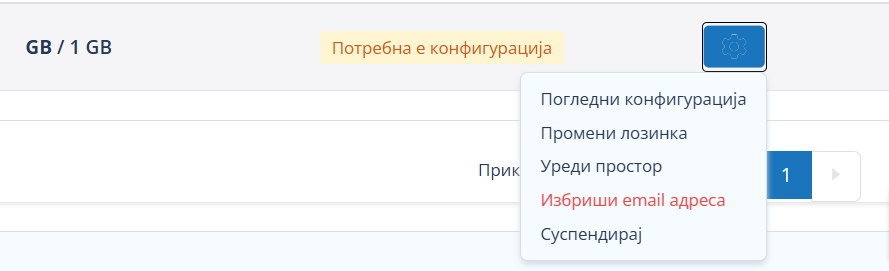
To view the required configuration:
- Log in to theMKhost Client Portal.
- From the navigation menu on the left, selectEmail Hosting.
- Open the active Email Hosting service.
- Find the email address with the"Configuration Required"status.
- Click theSettingsicon.
- Select"View Configuration".
What is displayed in the configuration?
The"Email Address Configuration"window will open, displaying the DNS records required to connect the domain to the Email Hosting service.
For each record, you can see:
- record type;
- Host / Name;
- value;
- priority, where applicable;
- TTL;
- record status.
If a required record is not found in the current DNS configuration, it will be marked with the status"missing".
Which DNS records are configured automatically?
During automatic configuration, the portal displays and configures the required records for the Email Hosting service:
- MX– directs incoming email messages to the appropriate mail server;
- CNAME for– directs the subdomain to the appropriate mail server;
- CNAME for– directs the subdomain to the appropriate mail server;
- SPF– defines which servers are authorized to send email messages on behalf of the domain;
- DKIM– enables verification of the authenticity of sent email messages;
- DMARC– defines a policy for verifying email messages using SPF and DKIM.
Always use the DNS values displayed in the configuration of your Email Hosting service.
How do I start the automatic configuration?
After reviewing the records that need to be configured, you need to confirm the DNS change.
Before confirmation, the portal displays a notice informing you that changing the DNS settings may affect existing services associated with the domain.
Select the confirmation checkbox and click"Confirm".
After confirmation, the MKhost portal automatically configures the required DNS records without the need to manually enter them one by one in the DNS zone.
What if DNS records already exist?
Before proceeding with automatic configuration, carefully review the displayed DNS records, especially if the domain previously used another email service.
Existing MX and other mail-related records may be associated with the current email service, and changing them may affect the sending and receiving of email messages.
Therefore, before confirming the automatic configuration, check whether the existing mail records are still required.
What should I check after automatic configuration?
After the automatic configuration is completed, the system checks the domain's DNS configuration again.
Check the status of the email address in theEmail Hostingsection of the portal.
If the DNS configuration has been successfully applied and validated, the email address will receive the status:
"Active"
If the status remains"Configuration Required", open"View Configuration"and check whether any required DNS records are missing or have not yet become active.
Keep in mind that DNS changes may not become visible immediately after they are applied due to DNS propagation.
Note:DNS configuration only needs to be performed once per domain. If you create additional email addresses on the same already configured domain, you do not need to configure the same DNS records again.
3. How do I manually configure DNS records for Email Hosting?
If the domain's DNS zone is not managed through MKhost or automatic configuration is not available, the required DNS records for the Email Hosting service can be configured manually.
The MKhost portal displays the exact DNS records and values that need to be entered through the provider that manages the domain's DNS zone.
Where can I see the required DNS configuration?
When creating an email address for a domain that requires manual configuration, the portal will display the following window:
"Configure the Domain and Create the Email Address"
The configuration is performed in three steps:
- Add the MX record;
- Add the SPF, DKIM, and DMARC records;
- Validate the DNS configuration.
Step 1: Add the MX record
Log in to the control panel of the provider that manages your domain's DNS zone.
Find the section for managing DNS records, usually namedDNS Settings,DNS Management,DNS Zone, or similar.
In the first step, the MKhost portal will display the MX record that you need to configure.
Enter the displayed:
- Type:MX
- Host / Name:
- Value:the mail server displayed in the MKhost portal
- Priority:
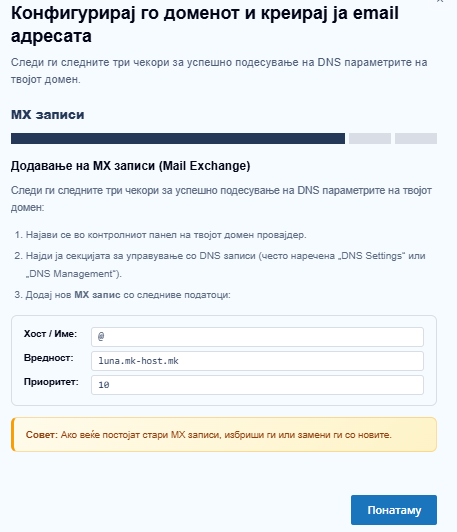
Always use the exact mail server value displayed in the configuration of your Email Hosting service.
Important:If old MX records from a previous email service already exist, delete them or replace them with the records displayed in the MKhost portal.
After configuring the MX record, continue to the next step.
Step 2: Add the SPF, DKIM, and DMARC records
In the next step, the portal will display the security-related DNS records required for the Email Hosting service.
SPF
Add a TXT record with:
- Type:TXT
- Host / Name:
- Value:the SPF value displayed in the MKhost portal.
SPF defines which mail servers are authorized to send email messages on behalf of your domain.
DKIM
Add a TXT record with:
- Type:TXT
- Host / Name:
- Value:the DKIM value displayed in the MKhost portal.
DKIM enables verification of the authenticity of sent email messages.
DMARC
Add a TXT record with:
- Type:TXT
- Host / Name:
- Value:the DMARC value displayed in the MKhost portal.
DMARC complements SPF and DKIM protection and defines a policy for validating email messages sent from the domain.
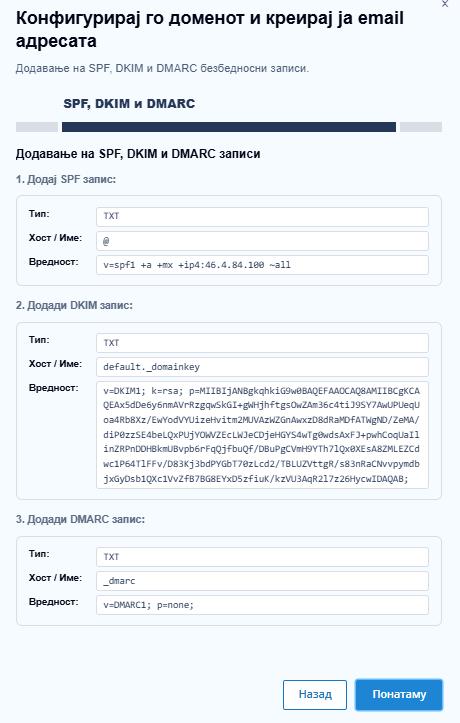
Enter the values exactly as they are displayed in the MKhost portal.
Note:The way the Host/Name field is entered may differ depending on the DNS provider. For example, some DNS panels use for the root domain, while others require the full domain name to be entered.
After entering and saving the required records, continue to the final step.
Step 3: Validate the DNS configuration
After configuring the MX, SPF, DKIM, and DMARC records through your DNS provider, return to the MKhost portal.
In the"Validation"step, confirm that the DNS parameters have been configured according to the provided instructions and click:
"Start Validation"
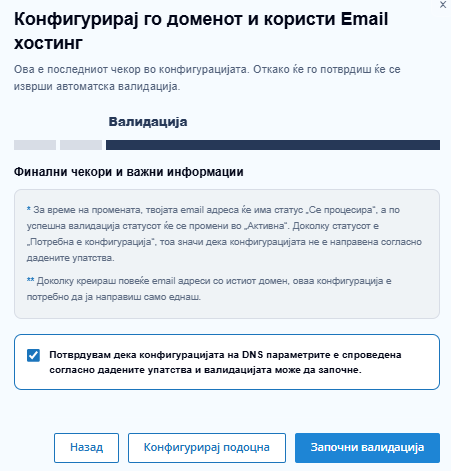
The system will check the domain's DNS records.
During the verification process, the email address may have the status"Processing".
If all required DNS records are configured correctly and successfully validated, the status of the email address will change to:
"Active"
If the address remains in the"Configuration Required"status, check again whether the DNS records have been entered exactly according to the values displayed in the MKhost portal.
Keep in mind that after changing DNS records, it may take some time for the changes to become active.
Note:If you create multiple email addresses on the same domain, the DNS configuration only needs to be performed once. After the domain has been successfully configured, additional email addresses on the same domain can be activated without configuring the DNS records again.
4. How long does it take for DNS changes to become active?
After you configure or change the DNS records for the Email Hosting service, the changes may not become visible immediately.
This process is calledDNS propagationand refers to the period during which the new DNS information is updated and becomes available across DNS servers.
How long does DNS propagation take?
After configuring the required DNS records, the changes may become active within5 minutes to 6 hours.
The time may vary depending on the DNS provider, the TTL values of the records, and previously cached DNS information.
Why aren't the changes visible immediately?
DNS servers temporarily store, or cache, DNS information for domains.
Therefore, after DNS records are changed, some DNS servers may continue using the previous configuration for a certain period until the new information is updated.
As a result, the changes may be visible from one network while another network may still be using the previous DNS configuration.
When will the Email Hosting service start working?
Once the required DNS records have been configured correctly and successfully validated, the email address in the MKhost portal will receive the status:
"Active"
Once activated, the email address is ready for normal sending and receiving of email messages.
If the address still has the"Configuration Required"status immediately after configuring the DNS records, wait for DNS propagation to complete and check the status again.
What if the changes are not active after 6 hours?
If, after6 hours, the email address still has the"Configuration Required"status or the service is not functioning correctly:
- Check that all DNS records have been entered exactly according to the values displayed in the MKhost portal.
- Check that the records have been configured in the domain's active DNS zone.
- Check whether any old or conflicting MX or other mail-related records exist.
- Start the validation process again through the MKhost portal.
- If the configuration is correct but the issue persists, contact MKhost Technical Support for further assistance.