MKhost Knowledgebase
Need help? Search or browse our large collection of articles on a variety of topics including hosting, domains, emails and more .
How to Use the Email Hosting Service
Watch the video below to learn how to use and manage the e-mail hosting service:
Before you begin, please check that:
The Email Hosting service is active, the domain is properly configured, and the required DNS records are correctly set up and active.
Important: Mailboxes can be created even before the DNS configuration is fully completed. However, the full functionality of the service becomes available once the domain status is active and the required mail records are properly configured.
What does the Email Hosting service provide?
With the Email Hosting service, you can:
create dedicated email addresses on your domain;assign a specific amount of storage (quota) to each mailbox;change passwords;access the mailbox via Webmail;manage multiple email addresses through the user portal.Creating an email address
Creating a new mailbox means creating a new email address within your Email Hosting service.
How to create an email address
Log in to your MKhost User Portal.
In the left navigation menu, select Email Hosting.
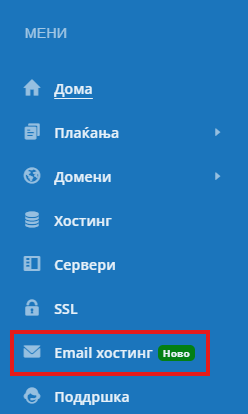
Click View.
Select Create email address.
In the first field, enter the mailbox name, for example info.
In the second field, select the domain, for example vasdomen.mk.
Enter a password for the mailbox.
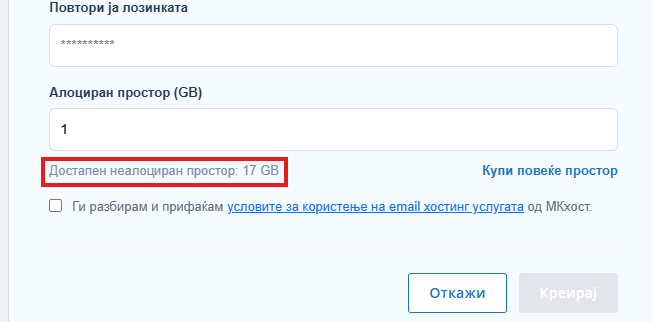
Set the quota, i.e. the amount of storage in GB that will be allocated to the mailbox.
Below the quota field, you will be able to see the total remaining unallocated storage.
Read and accept the terms of use for the MKhost Email Hosting service.
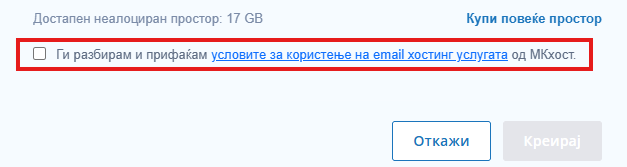
Click Create.
Example: If you enter info and select the domain vasdomen.mk, the final email address will be:
info@vasdomen.mk
If all required MX, SPF, and DKIM records are correctly configured and active, the mailbox will be ready for normal sending and receiving of email messages.
Recommendation
Use a strong password that contains a combination of:
uppercase and lowercase letters;numbers;special characters.
This is especially important for mailboxes such as info, contact, or support, which are often publicly accessible.
Changing the password of an email address
If you want to change the password of an existing email address, you can do so directly through mailbox management.
How to change the password
Go to the Email Hosting section of the user portal.
Find the mailbox for which you want to change the password.
Click the Settings icon.
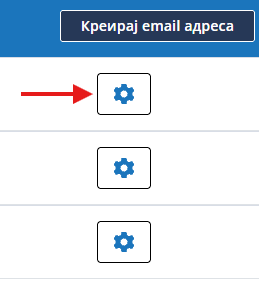
Select Change password.
Enter the new password.
Enter it again for confirmation.
Click Change password.
After changing the password
The new password must be updated everywhere you use the mailbox, for example:
Webmail;Outlook;Thunderbird;mobile phone;other email clients.
Important: If the password is changed but not updated on your devices or in your email clients, failed login attempts and synchronization issues may occur.
Changing the storage space for an email address
Each email address can have its own storage limit, or quota. This allows you to better distribute the total available storage of the Email Hosting service.
How to change the quota
In the Email Hosting section, find the mailbox.
Click the Settings icon.
Select Edit storage.
Use the storage selection control to determine how many GB you want to allocate to the mailbox.
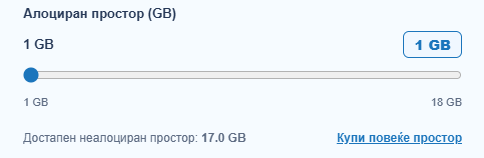
Save the change.
When should the storage space be changed?
Changing the quota can be useful:
when the mailbox is almost full;when a particular user needs more storage;when you want to better distribute the total capacity among multiple email addresses.What should you pay attention to?
The new quota must be within the available capacity of the service.
If you are reducing the storage space, the amount of space currently used by the mailbox must not exceed the new quota.
Before changing the quota, check how much storage is currently being used.
Logging in to Webmail
Webmail allows you to access your email address directly through a web browser, without installing or configuring any additional software.
You can access Webmail at:
https://yourdomain.mk/webmail (Enter your domain name.)
After opening the page, enter the login details for your mailbox.
To access your inbox, click Open.
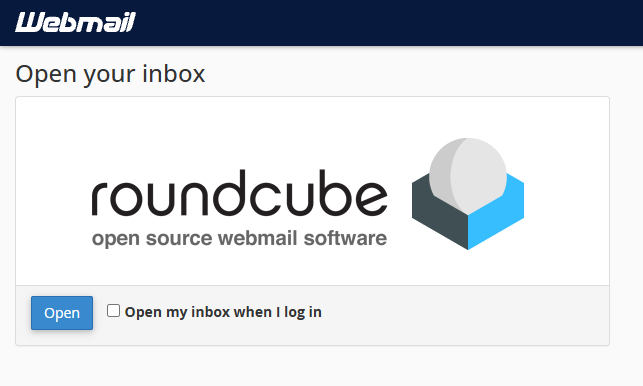
Webmail is a convenient way to quickly access your email messages, read them, and send emails directly through your browser.
When is Webmail useful?
Webmail is especially useful:
when working from another computer;when you do not have an email client configured;when you want to quickly check whether the mailbox is functioning properly;when you want to access your email messages without additional configuration.Usage recommendations
For easier and more secure email management, we recommend:
create a separate mailbox for each user or purpose;use strong and unique passwords;regularly check storage usage;increase the quota in time if the mailbox is approaching its limit;use Webmail for quick access and mailbox testing.Frequently Asked QuestionsCan I create an email address if the DNS records are not fully configured yet?
Yes. A mailbox can be created before the DNS configuration is fully completed. However, full functionality for sending and receiving messages will be available once the required DNS records have been correctly configured and activated.
How long should the password be?
The password must contain at least 10 characters.
What happens if I change the password?
The new password becomes active immediately. You need to update the password on all devices and email clients where you use the mailbox.
Does Webmail require separate installation?
No. Webmail is accessed directly through a web browser and does not require any additional software to be installed.